For App Reviewers

ManZi Review Guide

This page explains how to navigate ManZi and what each main area is for, so the review flow is easy to understand without guessing. The app is designed for Hong Kong Traditional Chinese learning with writing practice, recall challenges, learner management, records, incentives, and advanced controls.

What to test

Writing practice, recall challenge, learner switching, records/history, incentive settings, and advanced management controls.

Navigation model

The app uses a bottom tab layout. Each tab exposes a different part of the learning flow and app controls.

Helpful context

ManZi focuses on Hong Kong Traditional Chinese learning, including writing, recall, OCR-assisted materials, and progress tracking.

1Start on the Home screen

The Home screen is the best starting point for review. It gives the overall entry into the app and shows the primary learning surface before you move into deeper features.
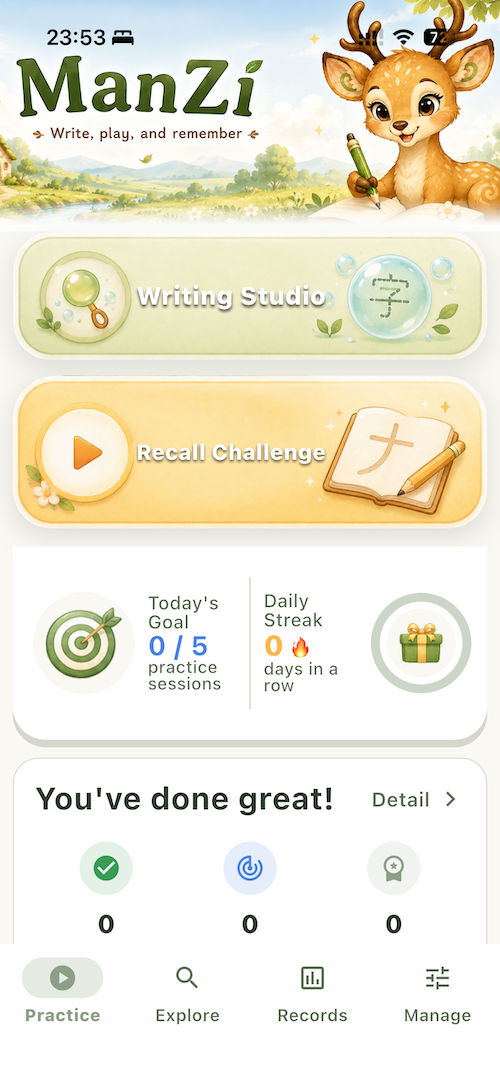
  1. Launch the app and stay on the default Home screen.
  2. Confirm the main navigation is visible.
  3. Use this page as the baseline before moving to learning and management flows.
Reviewer note: This is the easiest place to understand the app’s structure before testing specific learning modes.
ManZi home page for app reviewer
Home screen and overall app entry point

2Open Explore to see learning options

The Explore tab is where the reviewer can understand how learners browse available activities and content. It presents the learning-facing discovery surface of the app.
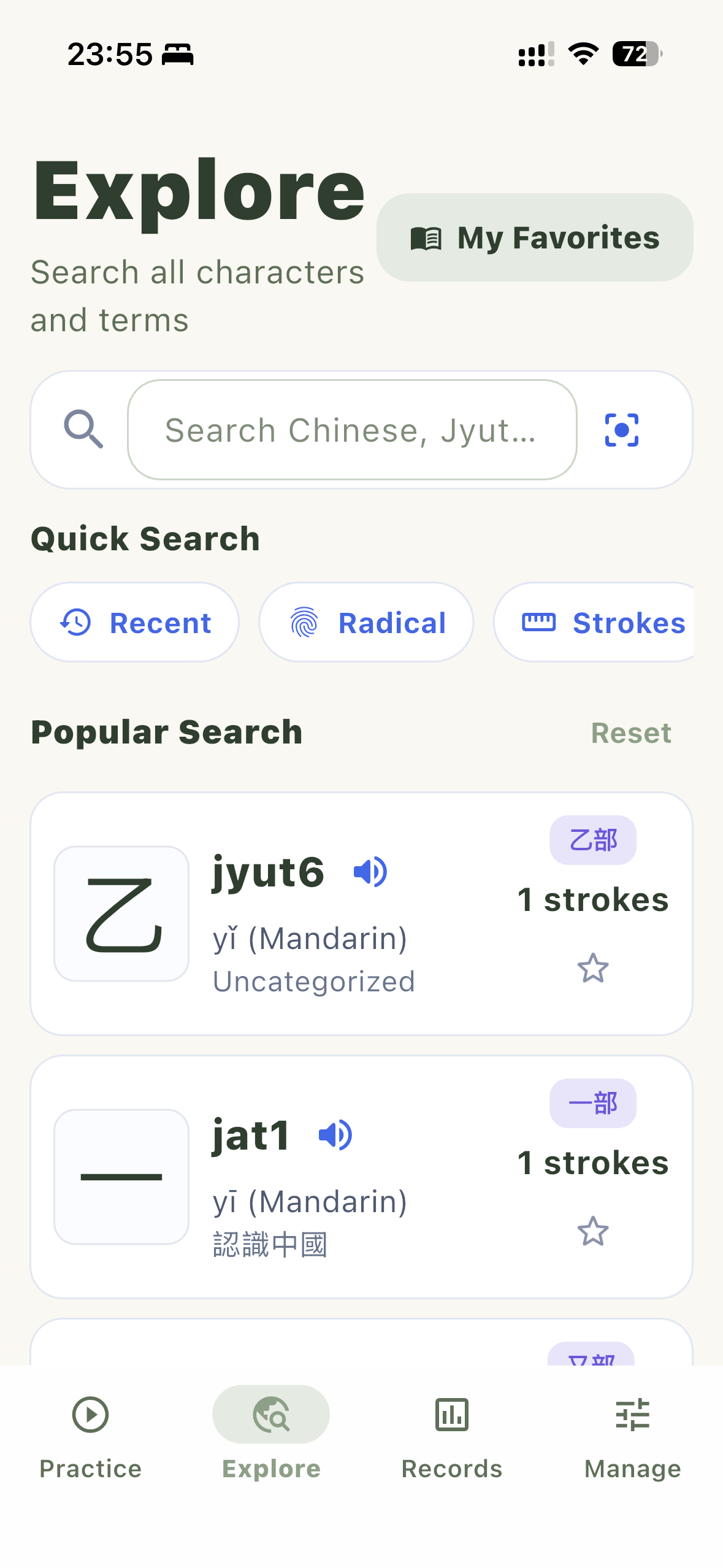
  1. Tap the Explore tab in the bottom navigation.
  2. Review how content is presented for learners.
  3. Use this as the entry point into active practice modes.
Focus area: This tab shows the learner-facing discovery experience before entering exercises.
ManZi explore tab
Explore tab for browsing learning activities

3Test Writing Practice

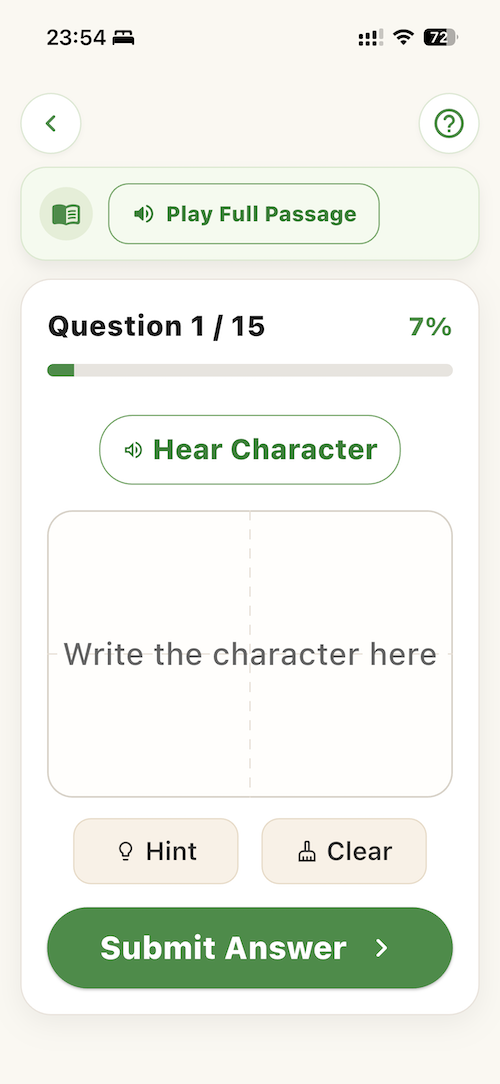
Writing Practice demonstrates the handwriting and character-writing side of ManZi. This is one of the core educational interactions in the app.

  1. Enter Writing Practice from the learning flow.
  2. Review the writing interface and how the learner is guided through practice.
  3. Interact with the exercise to confirm the handwriting-focused learning experience.
Reviewer note: This mode is intended to help learners practice writing and character formation rather than passive viewing only.
ManZi writing practice screen
Writing Practice mode

4Test Recall Challenge

Recall Challenge is the memory and retrieval side of the learning system. It lets the reviewer see that ManZi supports more than one kind of practice flow.
  1. Open the Recall Challenge activity.
  2. Review how the app presents prompt-based recall interaction.
  3. Confirm that the app supports challenge-style practice in addition to writing.
Focus area: This demonstrates the app’s game-like recall and reinforcement approach.
ManZi recall challenge screen
Recall Challenge mode

5Open Records to review progress history

The Records tab provides visibility into progress and history. This is useful for understanding how learners and reviewers can look back at completed learning activity.
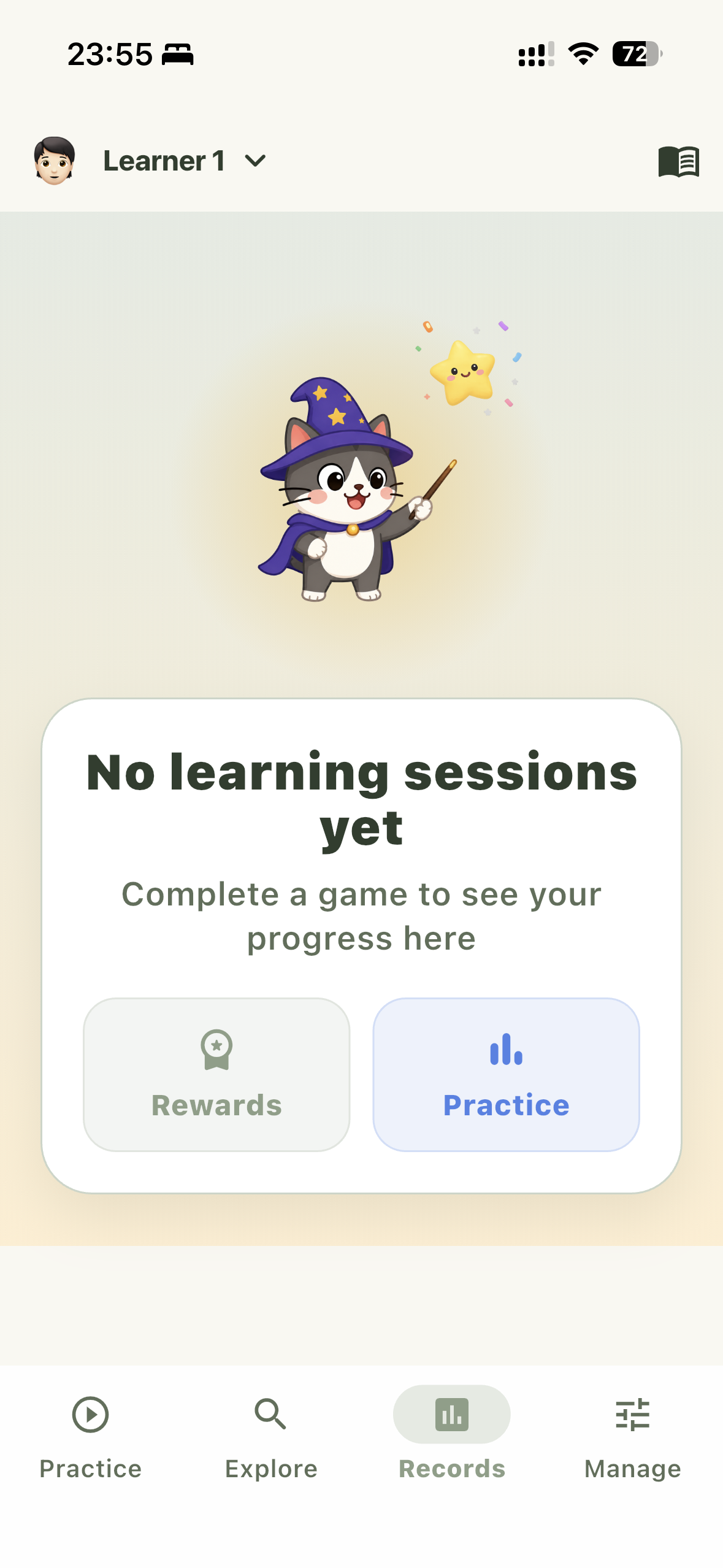
  1. Tap the Records tab.
  2. Inspect how prior activity or progress information is displayed.
  3. Confirm the app includes a progress-tracking view in addition to practice modes.
Reviewer note: This tab helps communicate that ManZi is not only for one-off exercises, but also for ongoing learning review.
ManZi records tab
Records tab for progress and history

6Open Manage for controls and configuration

The Manage area is where reviewer should inspect learner setup and supervision tools. It acts as the main management center of the app.
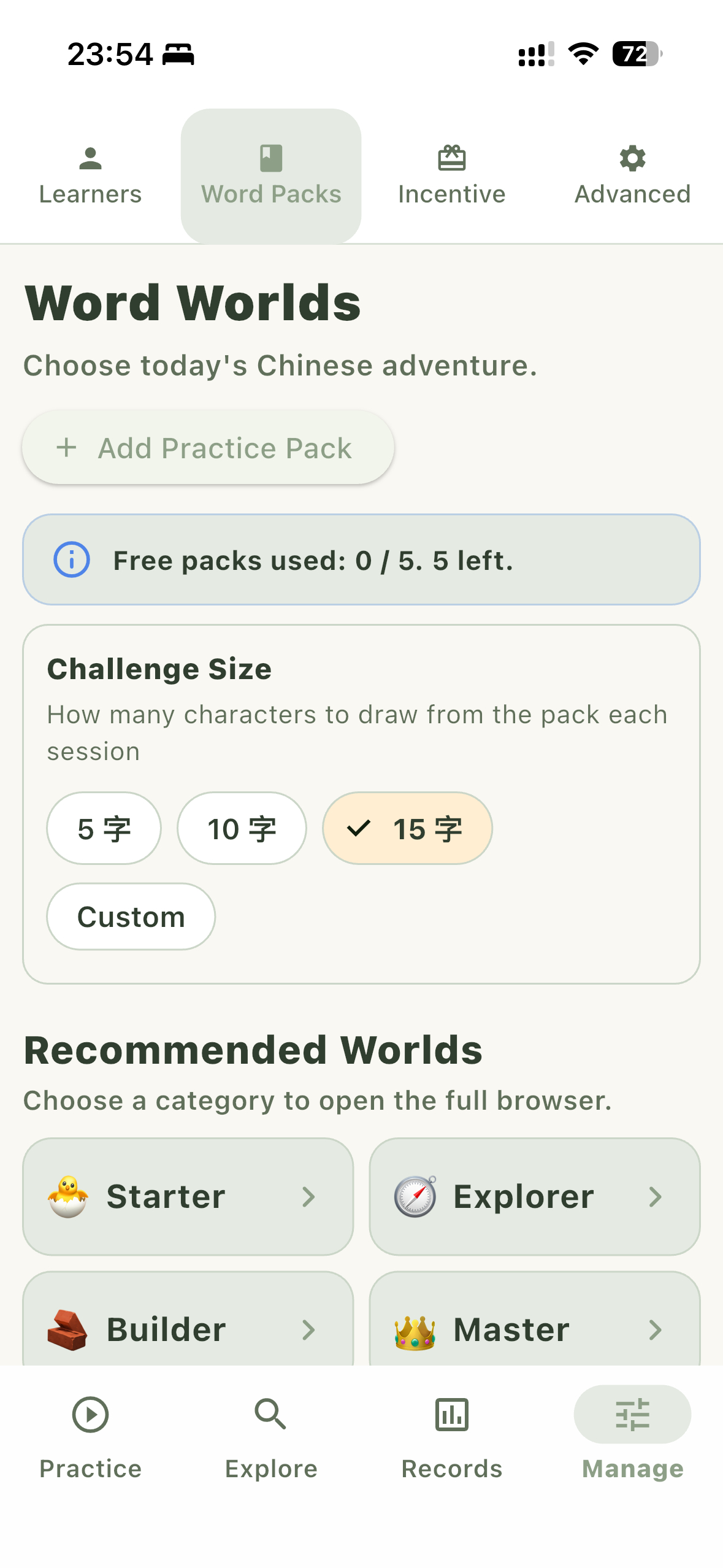
  1. Tap the Manage tab.
  2. Observe that this section is separate from the learner activity flow.
  3. Continue through the sub-tabs to review learner, incentive, and advanced controls.
Focus area: Manage is the reviewer’s hub for settings and configuration.
ManZi manage tab
Main Manage section

7Review the Learners tab

The Learners tab shows how the app supports individual learner profiles. This is important for reviewer understanding of personalization.
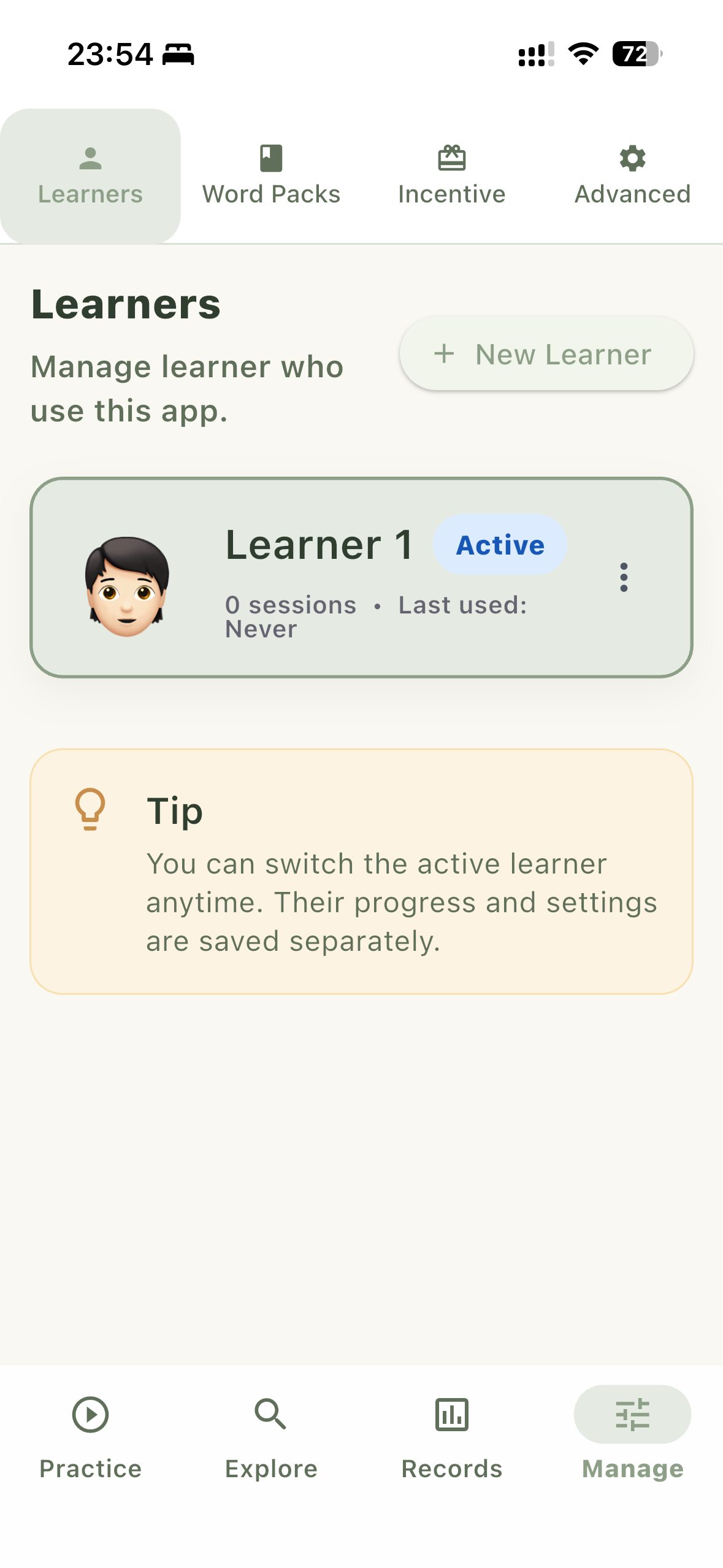
  1. Within Manage, open the Learners tab.
  2. Review learner profile management and selection behavior.
  3. Confirm the app is designed for managing learner-specific usage.
Reviewer note: This area explains how multiple learners can be organized inside one app environment.
ManZi manage learners tab
Learners management tab

8Review the Incentive tab

The Incentive tab demonstrates ManZi’s motivation and reward configuration. This helps explain the app’s reinforcement design for continued learning.
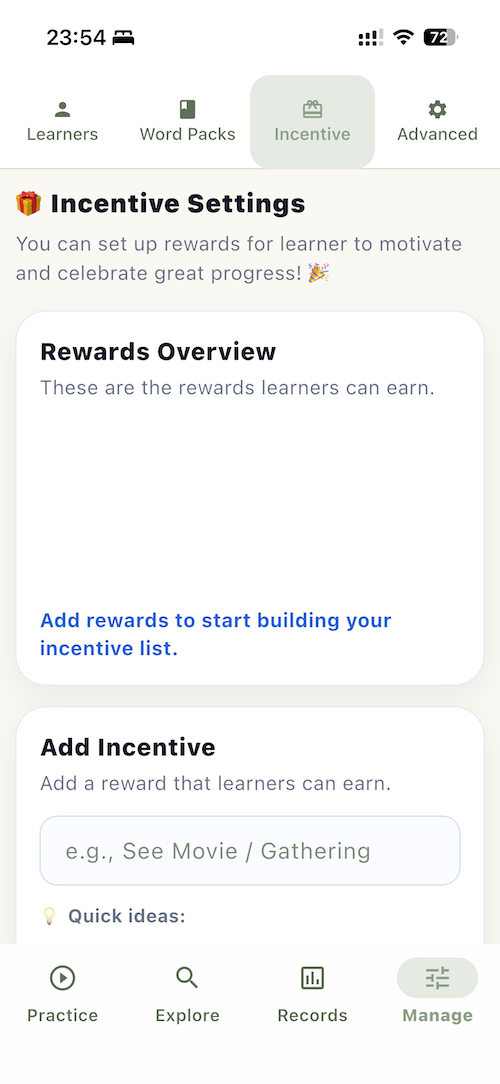
  1. Within Manage, open the Incentive tab.
  2. Inspect the reward and encouragement settings available there.
  3. Confirm that the app supports configurable motivational tools.
Focus area: This section represents the app’s incentive system and learning motivation controls.
ManZi manage incentive tab
Incentive settings tab

9Review the Advanced tab

The Advanced tab is where reviewer can inspect more sensitive management features, such as higher-level controls and maintenance-oriented options.
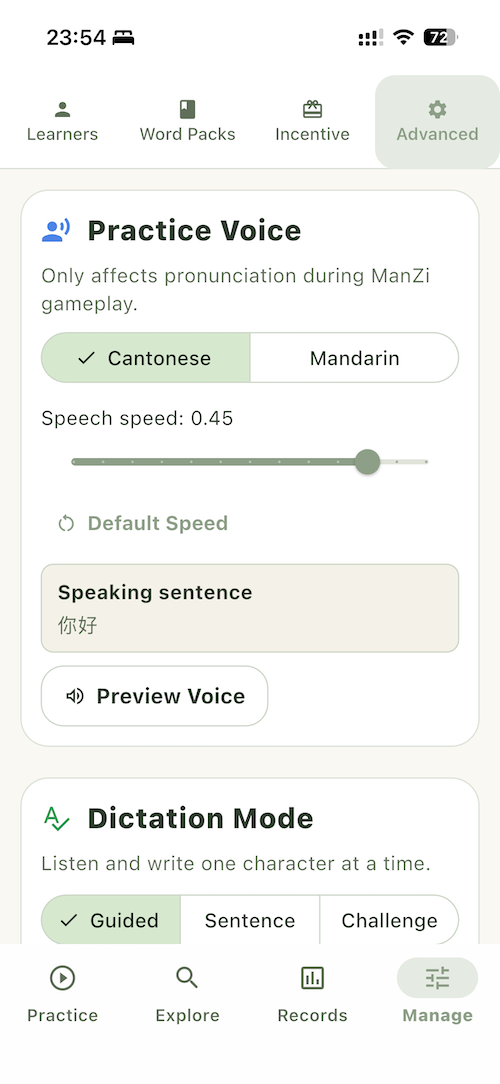
  1. Within Manage, open the Advanced tab.
  2. Inspect the advanced options.
  3. Use this section to understand supervision and control capabilities in the app.
Reviewer note: This area is also where protective controls are most likely to be surfaced.
ManZi manage advanced tab
Advanced settings and controls

10Summary for review

After reviewing the screens above, the app’s main structure should be clear: learning begins from Home and Explore, active exercises include Writing Practice and Recall Challenge, Records shows progress, and Manage contains learner and settings tools.

  • No login is required for the reviewer to understand the app structure.
  • The app includes both learner activities and management tools.
  • Support and policy pages are available if additional context is needed.
ManZi manage overview for summary
Manage remains the best place to inspect configuration