i Reviewer Overview
Morse Dot is a Morse playground app for practice and experimentation. It has three core tabs: Hear, Signal, and Transmit, plus a Setup screen for tuning behavior.
Important for Reviewers
No account, login, messaging backend, or social profile is required. Core playground features work immediately after install.
Primary Features To Test
- Live tap input and decoding in Signal
- Typed message to Morse conversion in Transmit
- Signal sharing and receiver link flow
- Paste/decode from clipboard in Signal
- Listening playback workflow in Hear
- Operator Training paywall purchase/restore flow
1 Open App And Verify Main Navigation
- Launch Morse Dot.
- Confirm bottom navigation shows three tabs: Hear, Signal, Transmit.
- Switch between tabs and verify smooth transition without crashes.
2 Test Signal Input (Tap To Decode)
- Go to Signal tab.
- Press and release the large tap button using short taps (dit) and longer taps (dah).
- Verify decoded output appears in the DECODED SIGNAL area.
- Use backspace and reset controls to verify editing behavior.
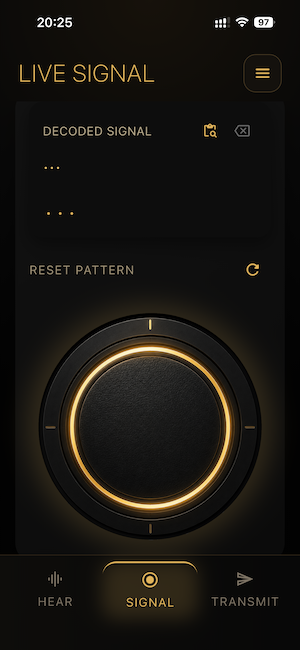
Signal tab (morse01.png)
3 Test Transmit (Compose And Share)
- Go to Transmit tab.
- Enter a message, for example: HELLO MORSE.
- Verify Morse preview updates based on the typed message.
- Tap SHARE SIGNAL and confirm share sheet opens.
- Verify shared content includes a web receiver link like https://www.manesvenom.com/morse.html#m=....
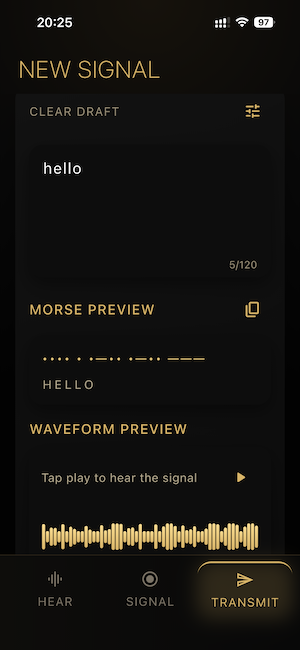
Transmit tab (morse03.png)
4 Test Receiver Link To App Callback
- Open a generated receiver link in browser: morse.html#m=....
- Tap Open in Morse Dot on the web page.
- Verify app opens and switches to Signal tab.
- Verify decoded plain-text message is loaded into Signal output.
5 Test Clipboard Decode Flow
- Copy a Morse line (for example from shared text) to clipboard.
- In Signal, tap the paste/decode icon.
- Verify Morse content is decoded and shown in the output area.
6 Test Hear Tab
- Open Hear tab.
- Select different difficulty levels and verify lesson content updates accordingly.
- Start playback and verify users can learn by both listening and feeling haptic feedback.
- Swipe left or right to switch to other letters for study.
- Pause/stop/replay and confirm controls respond correctly.
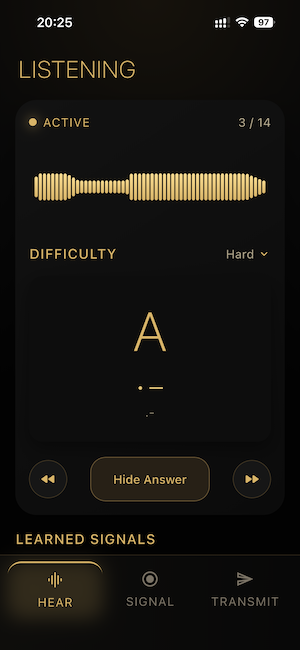
Hear tab (morse02.png)
7 Test Setup Screen And In-App Purchase
- Open Setup from the Signal header menu.
- Verify settings load and can be changed.
- Open upgrade/paywall entry point (Operator Training).
- Verify product information loads correctly.
- Verify purchase action and restore action are both accessible.
- If using sandbox reviewer account, verify transaction flow completes or returns expected sandbox states.
- After purchase, return to Hear tab and verify Operator difficulty is unlocked.
- Verify users can start learning the full letter set after Operator difficulty is unlocked.
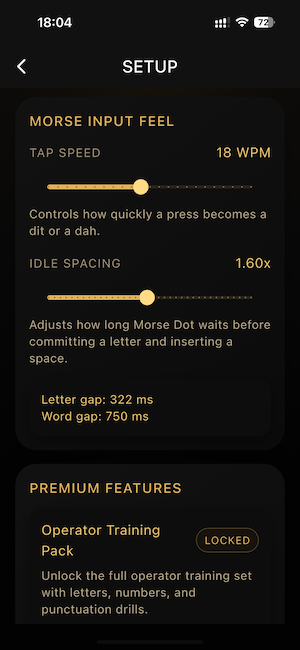
Setup tab (morse04.png)
Reviewer Tip
If any purchase-related issue appears in sandbox mode, please retry after restarting the app once. Core playground features remain available independently of purchase status.
8 Support And Policy Links
- Support: morsedot_support.html
- Privacy Policy: morsedot_privacy.html
- Terms of Use: morsedot_terms.html