1 Setting Up a Learner Profile and Word Pack
Start by creating a learner profile to test the app's personalization features.
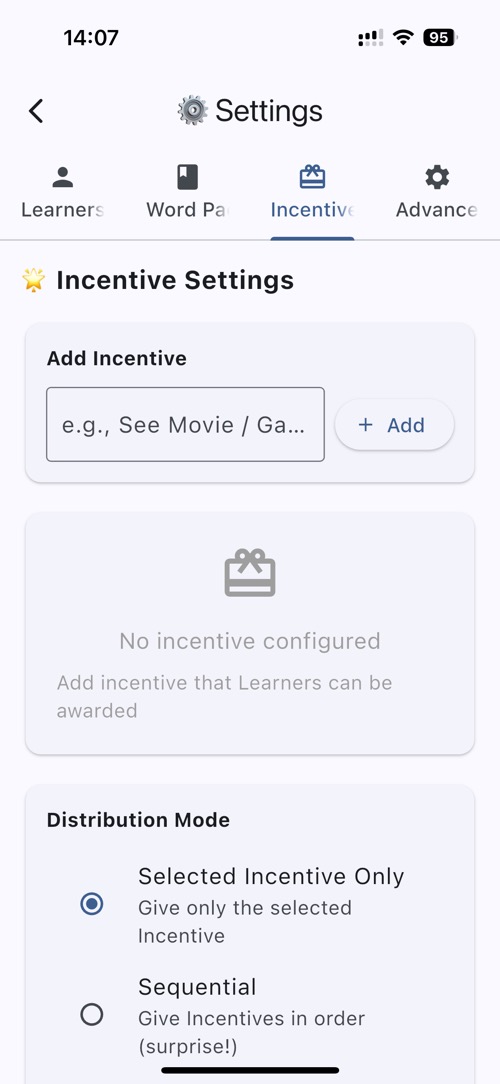
- Tap "Who's Learning" on the main screen
- In Learner Tab, tap "+ New Learner"
- Enter a learner name (e.g., "Learner 1")
- Select an avatar from the available options
- Tap "Create" to save the profile
- Tap on o next to "Learner 1" to select the learner, a tick will appear to indicate selected
- Tap "Word Pack" Tab to create a word pack
- Tap "+ New Word Pack"
- Enter a word pack name (e.g., "Test Pack")
- In Paste Text Box, enter "car cat"
- Tap "Process Text" below the Paste Text Box
- Scroll to bottom of screen and tap "Save Word Pack"
- Tap "O" next to "Test Pack" to add it to the learner
- Tap < back Button to go back to main screen
2 Start Playing the 3-Stage Learning System
Experience the progressive learning system that adapts to learner's skill development.
Stage 1 - Visual Learning:
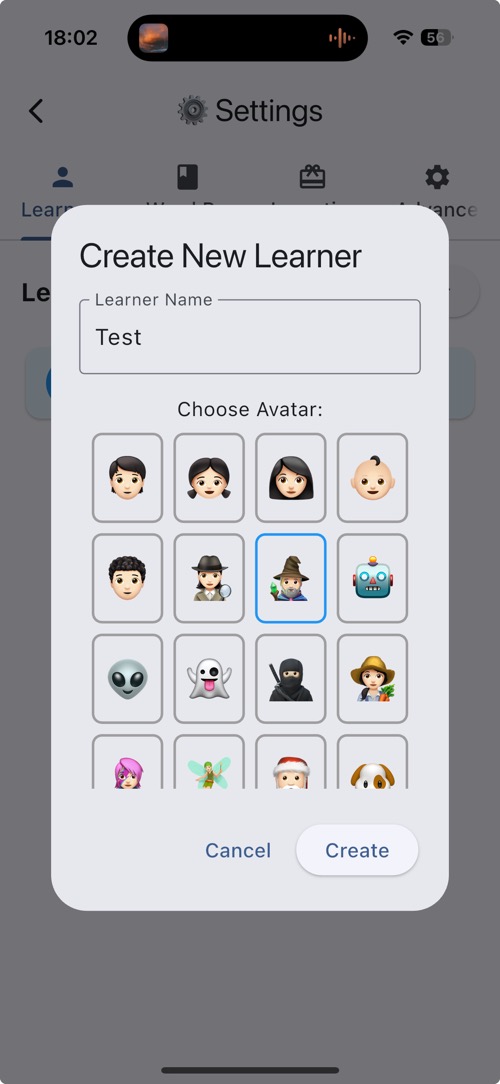
- In the main screen, tap "Start Popping"
- Keyboard will show up automatically
- Type "car" or "cat" as bubbles appear
- Notice visual feedback and letter-by-letter guidance
- The bubble will explode
Stage 2 - Motor Learning:
- Progress to Stage 2 after completing Stage 1
- See partial word with some letters hidden
- Listen to word pronunciation (TTS)
- Fill in the missing letters
Stage 3 - Auditory Learning:
- Advance to Stage 3 for the ultimate challenge
- See only the first letter of the word
- Listen to the word pronunciation
- Type the complete word from memory
Learning Progression:
Each stage builds upon the previous one, creating a comprehensive learning experience that develops visual recognition, motor skills, and auditory processing.
3 Playing the Incentive System
Use the motivational incentive system to encourage regular practice.
- Complete Stage 3 with a perfect score (no mistakes)
- Observe the incentive notification popup
- Tap on: "Awesome!" to claim the incentive
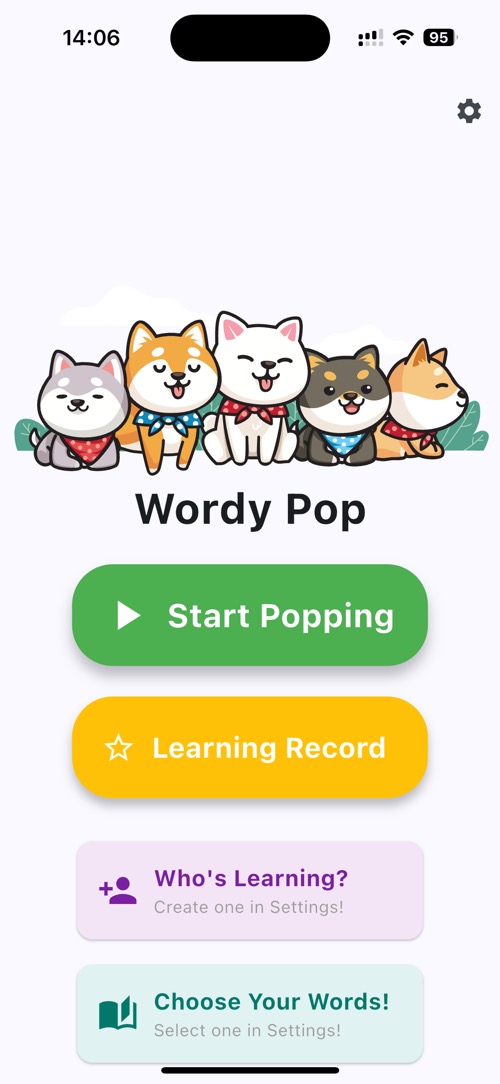
- Go to "Learning Record" from main screen
- Observe the claimed incentive in the history
4 Setting Controls
Explore the comprehensive teaching control features designed for learner.
- Go to Settings from the main menu at top right corner
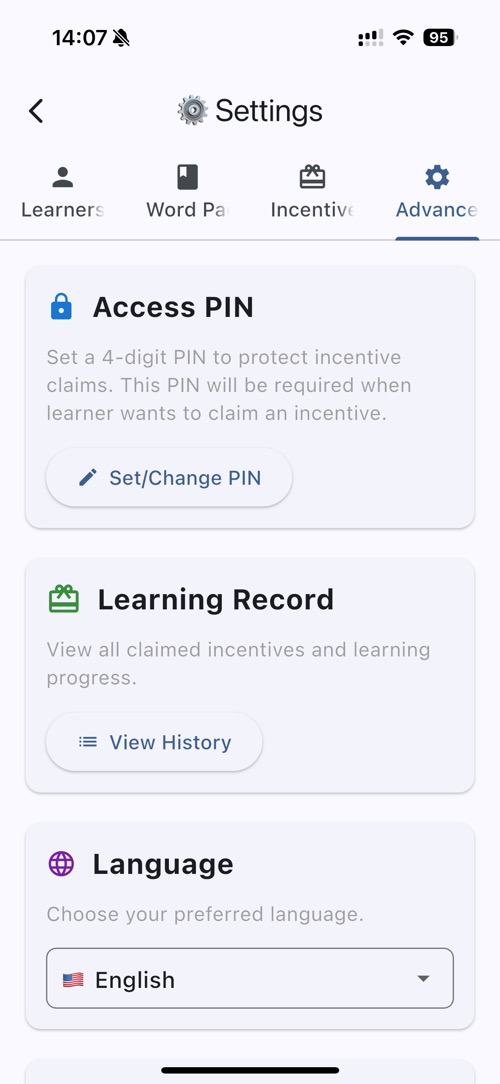
- Tap on "Advanced" tab
- Tap on Set/Change Pin, Set up a 4-digit PIN when prompted
- Enter 0000 , and confirm PIN 0000
- Then go back to main screen by tapping < back button
- Go to Settings again from main menu at top right corner
- Teacher Verification will be required to access settings
- Enter 0000 as PIN
- Enter 5 times wrong PIN, and it will show 1-minute lockout and Tap "Cancel"
- Wait for 1 minute, and try again
Learner Safety
The PIN system prevents learner from accessing settings, making purchases, or claiming incentives without approval. All sensitive functions are protected.
7 OCR Word Pack Creation
Experience the innovative OCR feature that allows creating custom word packs from any text.
- Go to "Settings "from main screen at top right corner
- Tap on "Word Pack" tab
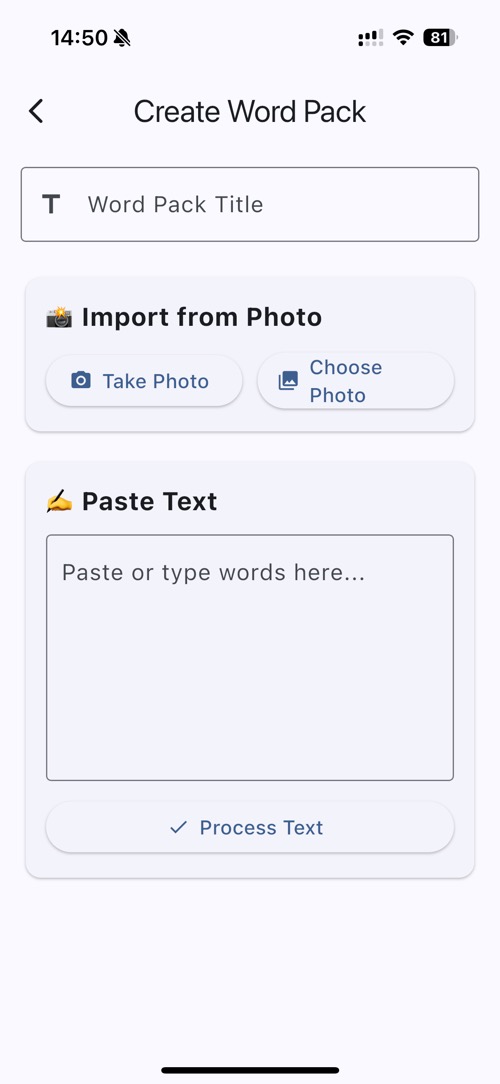
- Tap "+ New Word Pack" button
- Enter a word pack name (e.g., "Test Pack")
- Choose "take Photo" option to use OCR
- Allow camera permissions when prompted
- Take a photo of any text (book, worksheet, etc.)
- Review the extracted words and edit if needed at the bottom of the screen
- Tap "Save Word Pack" at the bottom or Floppy Icon at top right corner
- Tap on the "O" next to "Test Pack" to add it to the learner to indicate it is selected, a tick will appear
OCR Privacy Protection
All OCR processing happens locally on the device. Photos are not stored, and extracted text never leaves the device, ensuring complete privacy for learner's learning materials.
8 Incentive Setting Content
Verify that users can set up custom Incentives and manage incentive claiming.
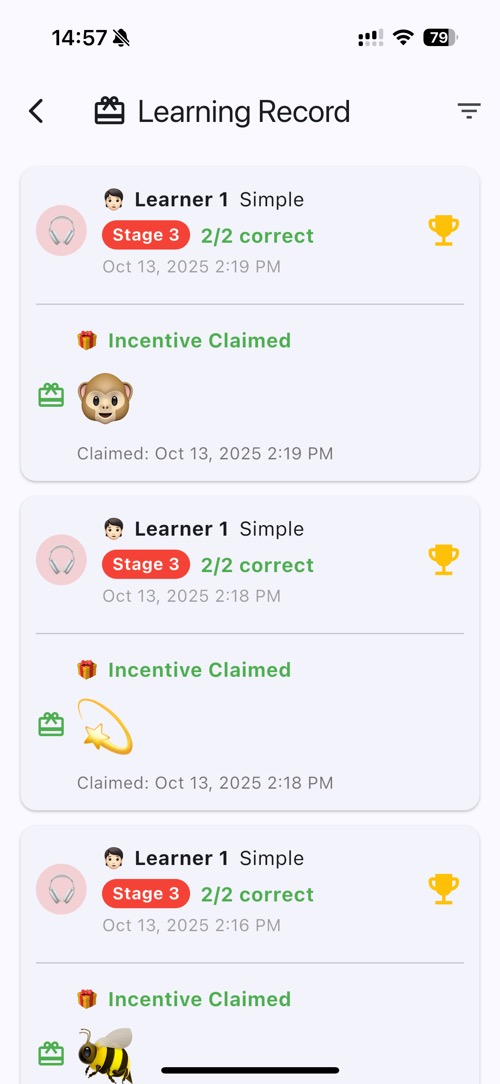
- From Main Menu, tap on Settings at top right corner
- Tap on "Incentives" tab
- In Add Incentive Text Box, enter "Gathering Time" then tap "+ Add"
- Select "Gathering Time" in Incentive List
- Turn off Cooldown Period by sliding switch to the left
- Go back to main screen by tapping < back button
- Play through all learning stages to earn a incentive
- Observe the incentive notification popup
- Tap on "Later" to keep the incentive and claim later or "Claim Incentive" to claim immediately
- If Tap on "Claim Incentive" , it will pop up a PIN Verification screen to enter PIN
- Enter 0000 as PIN
- It will go back to main screen, and you can see the incentive claimed in "Learning Record"
- Go to "Learning Record" from main screen
- Observe the claimed incentive in the history