Step 1
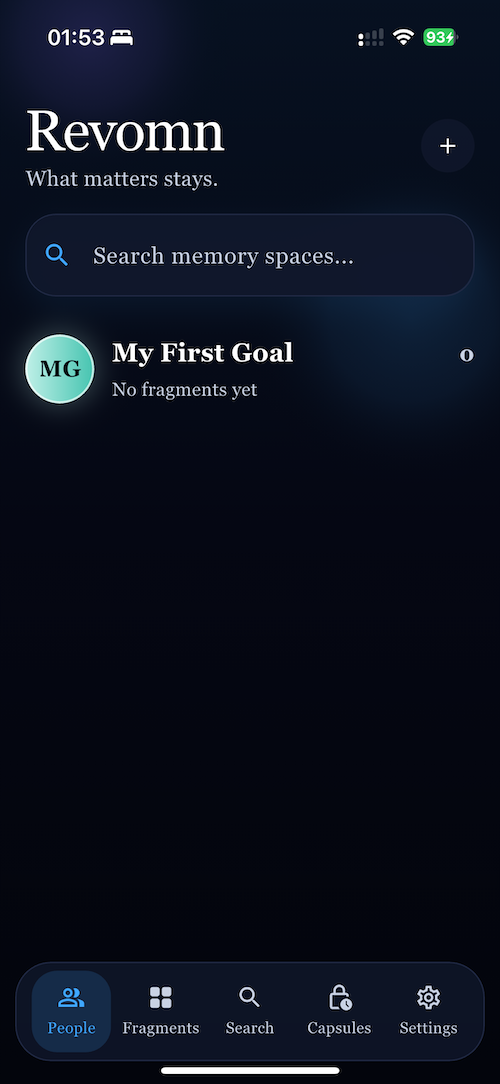
Open People
Use the People tab to see your memory spaces. Create one for a person, topic, trip, or project.
- Tap the plus button to create a new space.
- Tap a space to open its fragments.
 Revomn Review Guide
Revomn is a private memory space app for screenshots, chats, photos, videos, voice notes, PDFs, and Desktop Mode. This page gives App Review a simple checklist for the main app flow, the private-space PIN, and the lifetime IAP.
Revomn is designed to be usable right away. The reviewer can check the normal experience without any account setup, then move into the paid boundary only when needed.
Use the People tab to see your memory spaces. Create one for a person, topic, trip, or project.
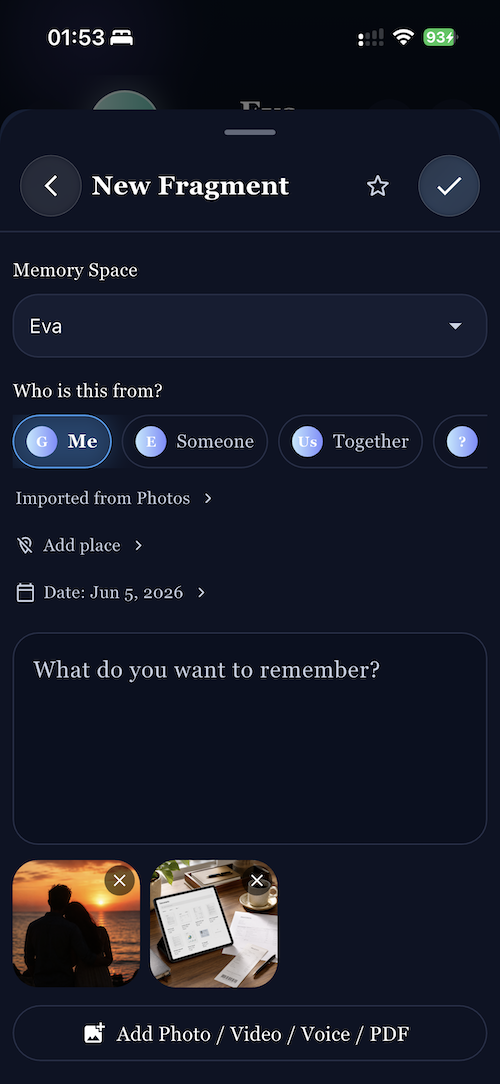
Open Fragments and use Quick Fragment or the share sheet to save photos, videos, voice notes, PDFs, and text.
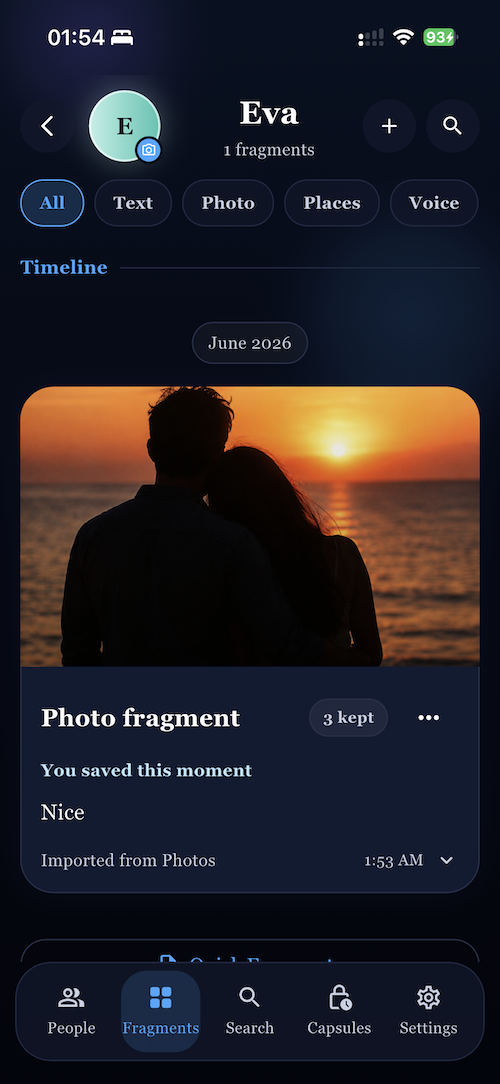
Fragments appear in a timeline so the reviewer can confirm that media, notes, and saved moments are being organized correctly.
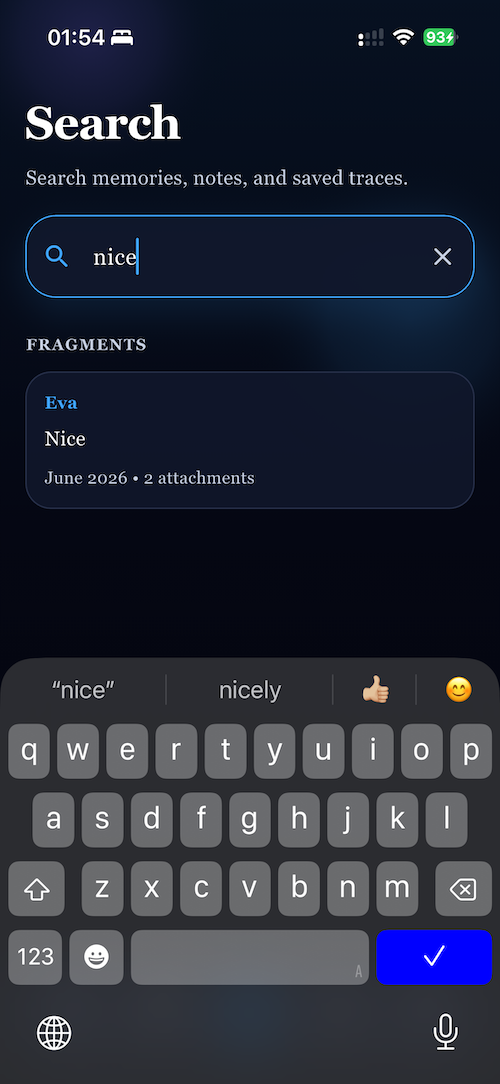
Use Search to quickly find notes, names, phrases, and saved fragments without opening every space one by one.
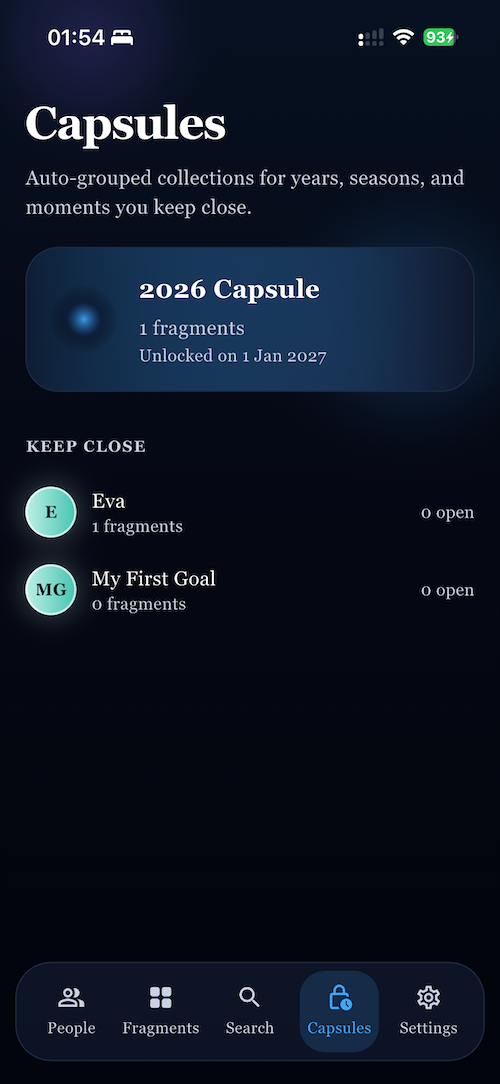
Capsules auto-group memories into years, seasons, and moments, so a large archive still feels easy to browse.
First set Vault Lock, then move a space into Private Space from the avatar menu, close the app, and reopen it to verify the hidden space and unlock prompt.
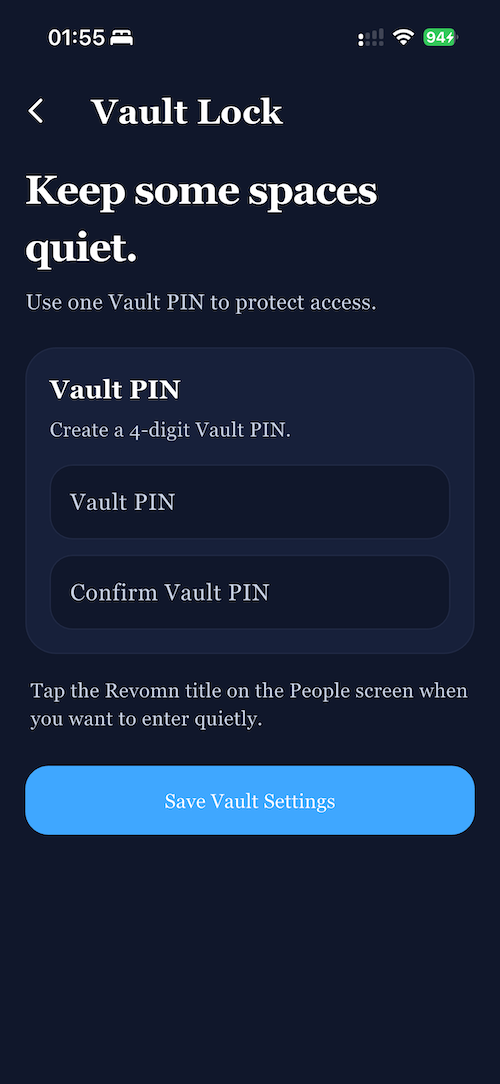
Create a 4-digit Vault PIN in Settings first. You will use it to unlock private spaces later.
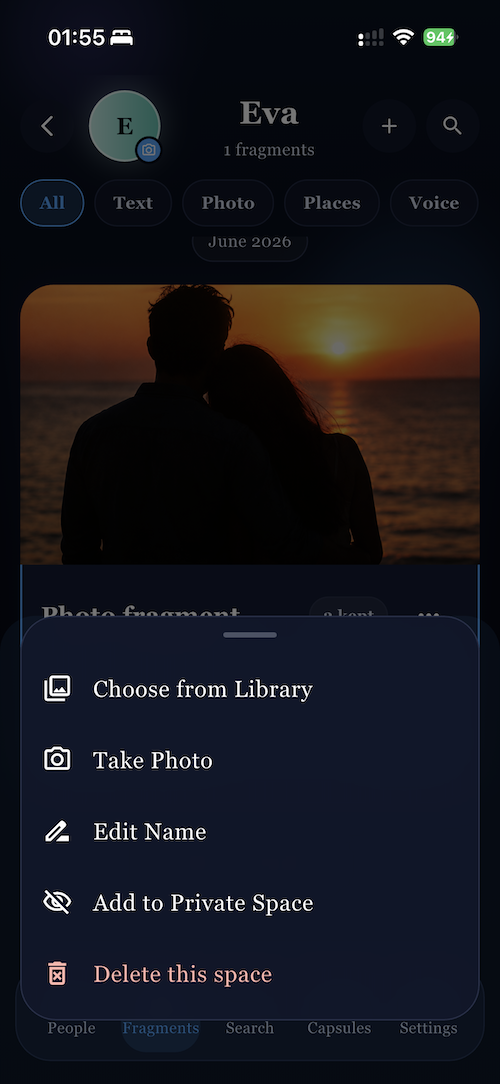
Select a space, tap the avatar icon, and choose Add to Private Space from the bottom sheet.
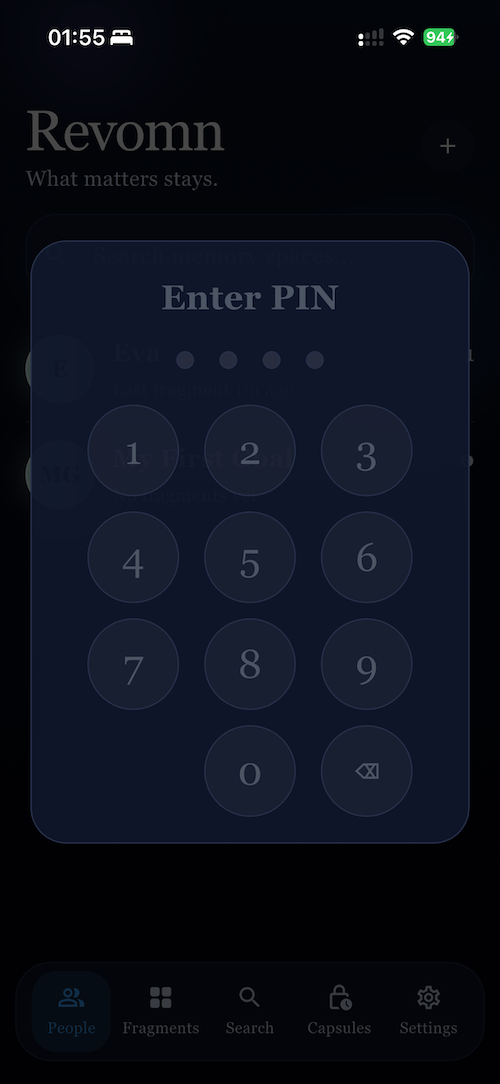
Close the app and open it again. Tap Revomn in the People tab and the unlock modal should appear for the private space.
Revomn uses one non-consumable lifetime product. The same product unlocks Premium features throughout the app.
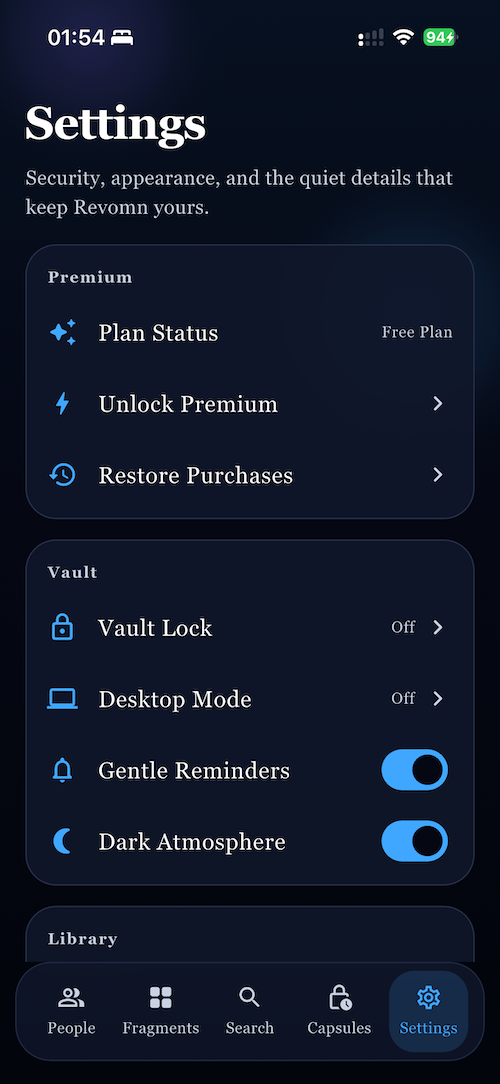
The purchase button is in Settings. Tap Unlock Premium to open the native App Store purchase sheet.
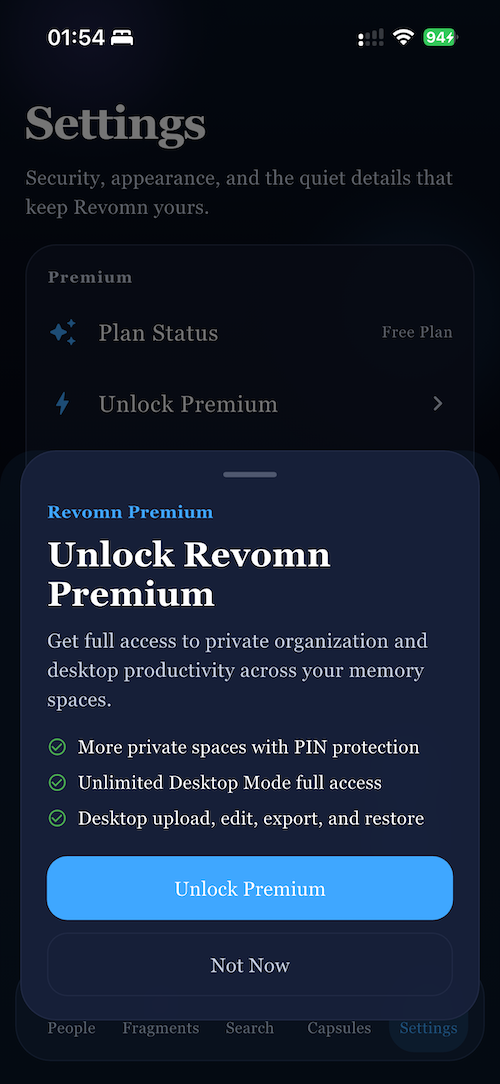
Use the App Store sandbox or review account to complete the purchase. After the purchase succeeds, Premium should unlock in the app.
Start in Settings, open Desktop Mode, then use the URL and PIN shown on the active session screen to reach the browser workspace.
Go to the Settings tab, then tap Desktop Mode to begin the desktop setup flow.
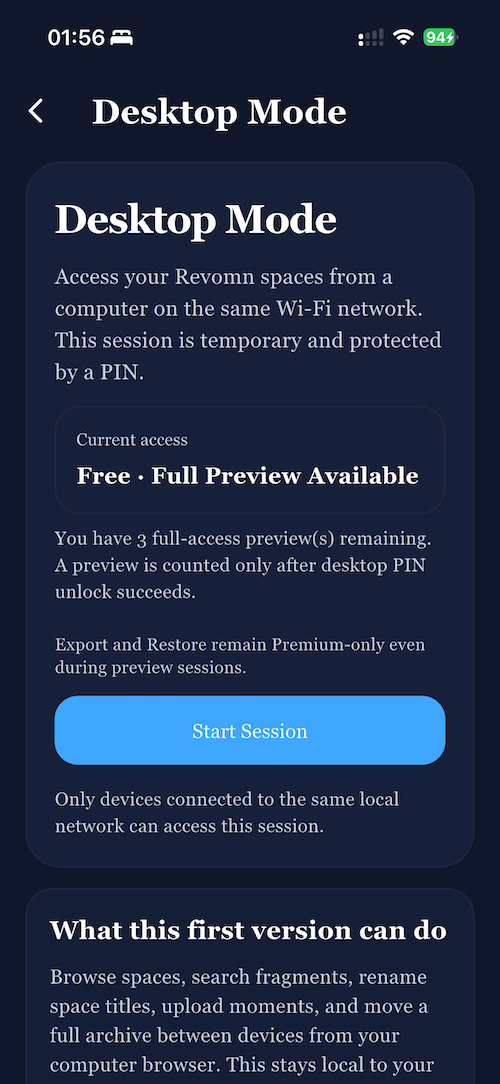
On the Desktop Mode screen, tap Start Session to create the browser connection.
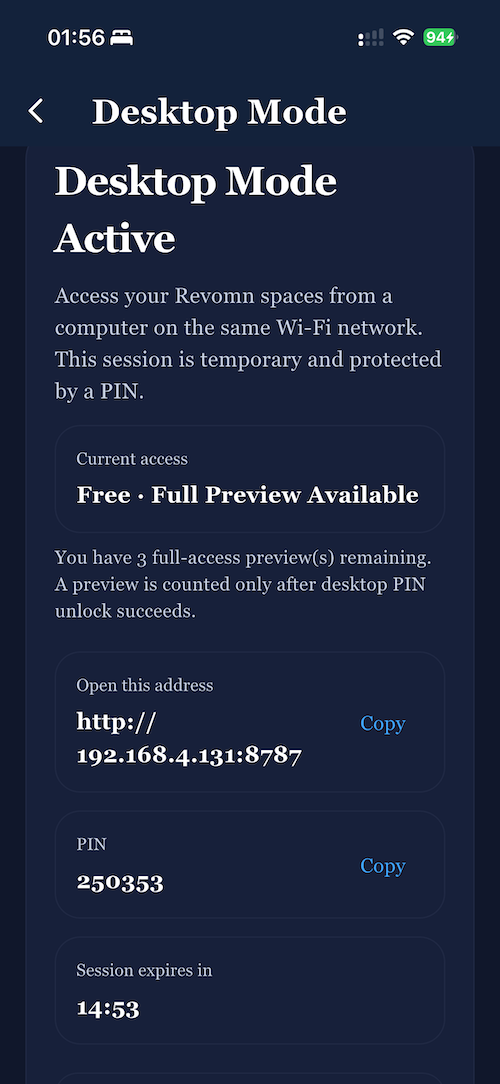
The active session screen shows the browser URL and the PIN you need to enter on the desktop browser.
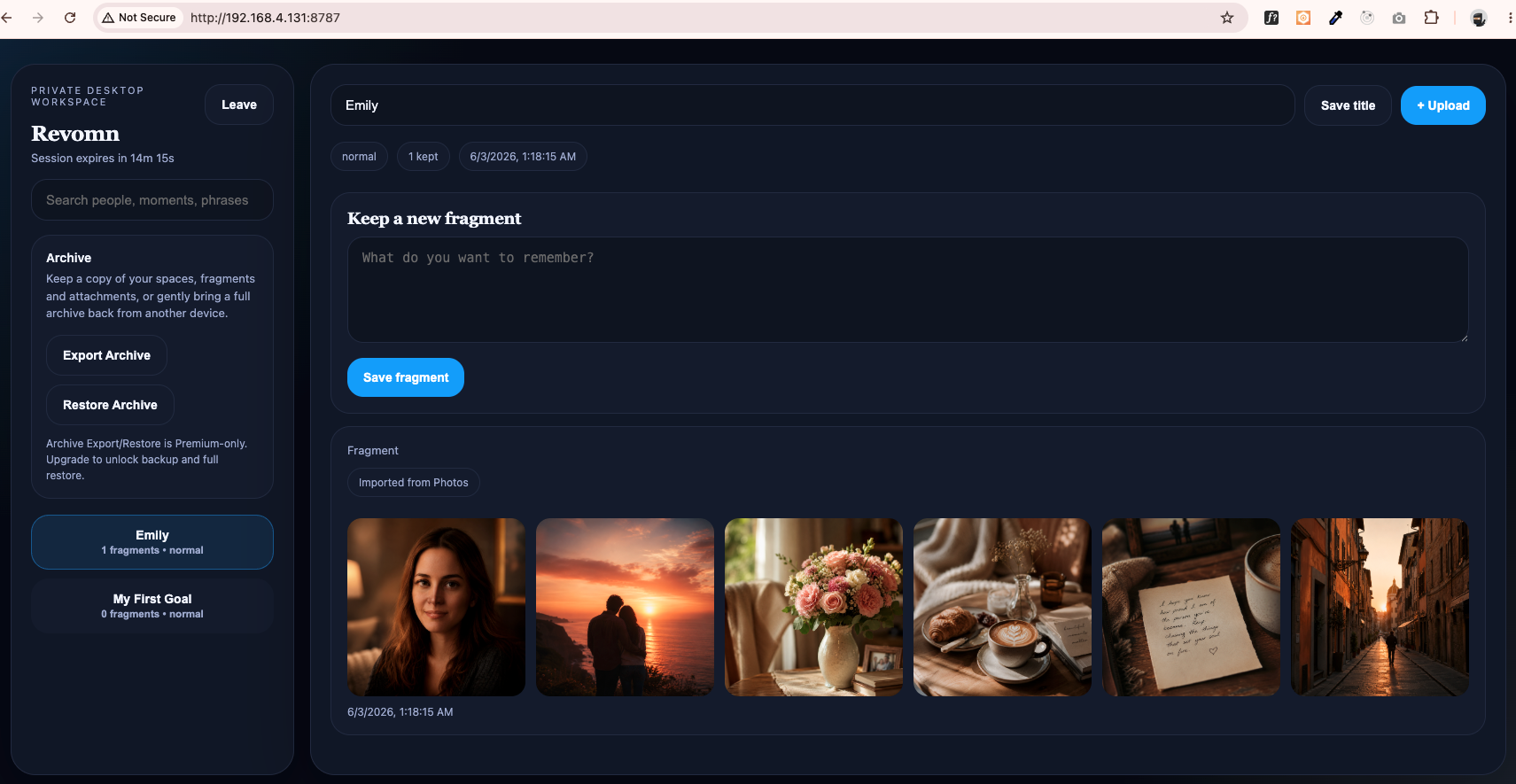
Start Desktop Mode from Settings, tap Start Session, then use the URL and PIN shown on the phone to open the browser workspace. Review spaces, search memories, and confirm the free preview boundary there.
These are the most likely things a reviewer needs to confirm quickly while testing the build.
No. Revomn is local-first and can be reviewed without creating a separate Revomn account.
The Vault PIN protects private spaces only. It does not act as a desktop PIN and does not change the normal app flow.
Go to Settings and tap Unlock Premium. The product ID is revomn.premium.lifetime.
Use Restore Purchases from Settings. If the App Store account already has the lifetime purchase, Revomn should restore the Premium state.
That is expected after the three free preview sessions are used. The reviewer can still verify that the free boundary works correctly.
No. Export Archive and Restore Archive are Premium features.
If you only want to verify the free app flow, you can still review the home screen, create spaces, add fragments, use search, lock private spaces with a PIN, and test Desktop Mode until the preview limit is reached.